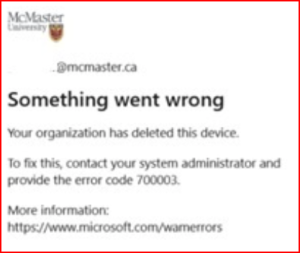
If the device has been deleted in Microsoft Entra ID, you may need to re-register it by doing the following: - Go to Settings > Accounts > Access Work or School.
- Select the your McMaster account and if connected, select Disconnect. If not connected, go to step Step 3.
- Select Connect and register the device again by going through the sign in process using your McMaster credentials.
Important: Make sure to fully complete the sign-in process, including waiting for each screen to fully load completely and completing all required steps such as multiMulti-factor authentication Authentication (MFA). If any part of the process is skipped or incomplete (e.g., closing the page while is still loading, or skipping MFA), the device may appear connected but will not function properly.
| Note |
|---|
title |
|---|
| Please Note: | If the above does not work for you, please contact us and provide your device name. See steps below to check your device name. |
|